
BuildNexTech understands that the foundation of any robust application lies in a streamlined development environment.But setting up Node.js correctly can feel more complicated than expected. This blog post serves as your definitive Node.js tutorial, guiding you not just through Node.js installation, but toward the industry's best practice: adopting NVM, the Node Version Manager.
This ensures a streamlined development foundation supported by scalable Node.js development services tailored for modern applications.
🔑 Key Insights
- 🚧 Installing Node.js globally can lead to version conflicts, permission issues, and upgrade challenges.
- ⚙️ NVM simplifies Node.js version management with seamless switching and cross-platform support.
- 🧩 Essential NVM commands help quickly install, list, and switch between Node.js versions.
- 🛠️ Proper configuration prevents common NVM issues like shell initialization and conflicting installs.
- 🚀 NVM ensures consistent environments, smoother collaboration, and future-ready development workflows.
The Initial Hurdle: Why Node.js Installation Can Be Tricky
Downloading Node.js directly from Nodejs.org may look straightforward at first. Still, it often introduces hidden challenges such as permission errors, global dependency conflicts, and the inability to manage different Node.js versions required by multiple projects.
Depending on system permissions, users may even face issues accessing files inside node_modules, especially when Node.js was installed with admin privileges or through OS package managers.
- Global Permissions Issue: Installing Node.js with administrative permissions (Windows) or using SUDO (macOS/Linux) can lead to ownership issues in certain directories (e.g., /usr/local).
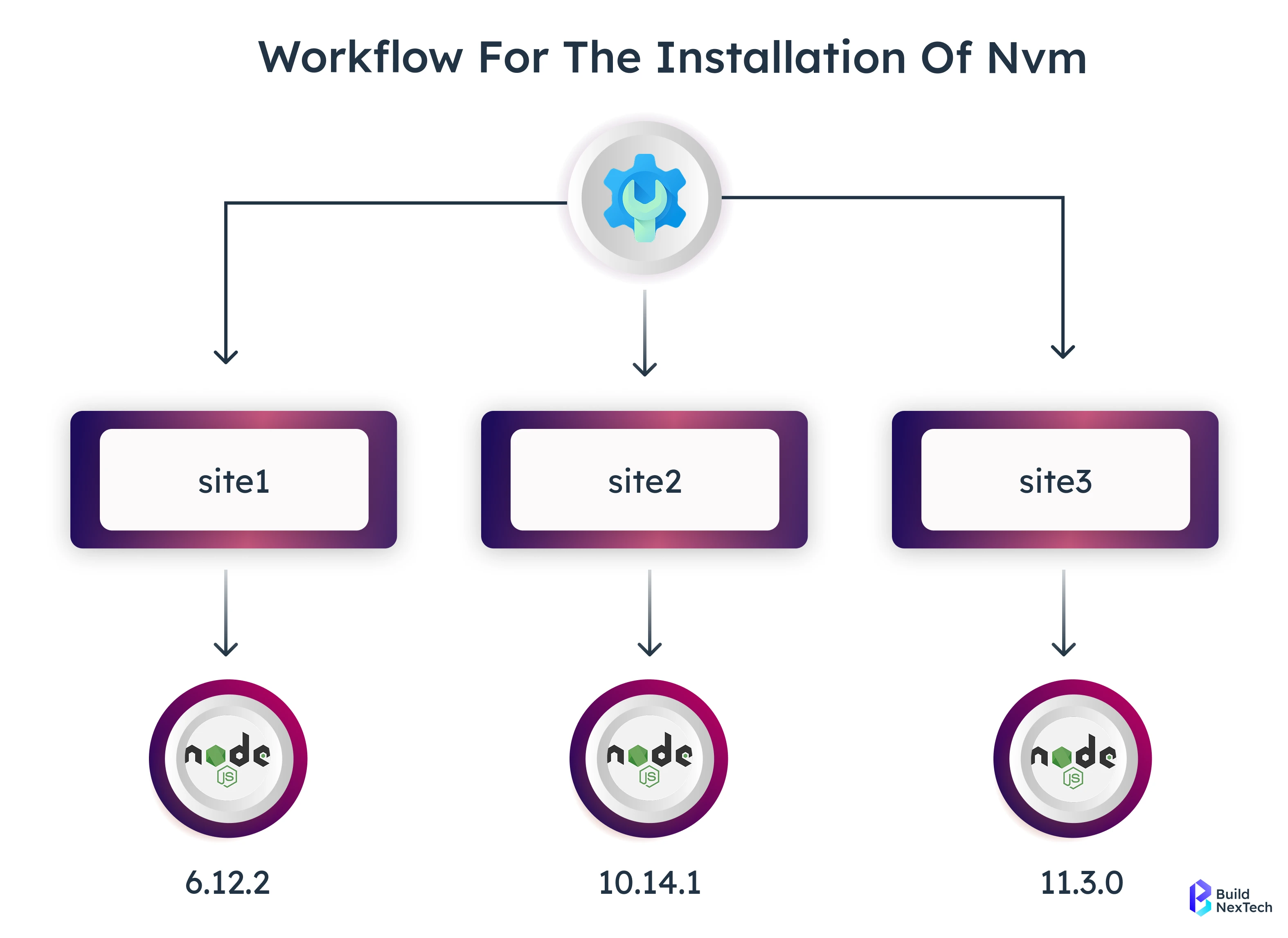
- Version Conflict: Developers often run multiple applications requiring different Node.js versions (10.10, 12.x, 14.x). A single global installation makes it hard to satisfy these requirements.
- Difficulties in Upgrading: New Node.js releases or critical bug fixes can disrupt projects because global packages must be updated first.
This complexity often pushes developers to implement workarounds for running multiple applications with different dependencies. What appears to be a simple Node.js installation quickly becomes a version management challenge requiring isolation and control over the runtime environment.
Introducing NVM: The Node Version Manager Game-Changer
JavaScript developers need agility. Being locked into a single Node.js version limits flexibility. NVM (Node Version Manager) offers an efficient way to manage Node.js versions and dependencies, enabling developers to install and switch between versions seamlessly.
What is NVM and How Does It Work?
NVM enables users to easily manage, install & swap between multiple versions of Node.js using the command line interface (CLI). Instead of storing the binaries for Node.js globally in the system binary directory, NVM allows users to store them in a location they choose, enabling quick access and easy version switching. When a user changes their Node.js version, NVM automatically updates the user's PATH variable to point to the right version of Node.js/npm for the current session.
- Isolation: Each version of Node is completely separate from one another. This prevents any possible issues with dependencies, as all modules installed on one Node version cannot interfere with other versions.
- Seamless Switching: Allows for quick switching between versions. Easily test your applications with the latest version of Node or a previous Long Term Support (LTS) version.
- Cross-platform: The original NVM works on Linux/macOS (or on Windows via WSL). For native Windows systems, use the community-supported counterpart nvm-windows.
By using NVM, you will no longer have to change Node versions or manage directories manually, giving you a cleaner and more reliable platform for developing JavaScript applications.
Why NVM is the Smartest "First Choice" for Developers
Installing NVM before starting work with frameworks like React or ExpressJS helps avoid global permission issues. Once set up, switching between older and newer Node.js versions becomes instant.
- Gapless availability: allows you to freely install any version of Node.js on Mac OS X & Ubuntu & not be tied to just one version.
- Managing dependencies: makes it easy to manage the local/global node packages that correspond with the exact version of Node.js being used.
- No root access required: you can install Node.js versions into your user directory - reducing the chance of causing security problems with your system.
To be as productive & effective as possible as a developer, it is important to stay current with the latest changes in Node.js & learn how to utilize such information to take advantage of Node.js as an effective development environment.
This makes NVM a reliable choice for businesses adopting enterprise-grade JavaScript development solutions that eliminate operational inefficiencies.
Mastering NVM: Essential Commands for a Flexible Workflow
When NVM has been installed, there are a small number of basic commands you can use to easily install Node.js versions. Some of these commands can switch between installed Node versions and manage npm easily. This allows you to have a flexible workflow without the headaches of configuring your environment, so you can concentrate on developing.
Managing Multiple Node.js Versions
Node Version Manager (NVM) is a free and user-friendly tool that allows you to manage Node.js versions on your computer based on what project you're currently working on; it enables you to quickly and seamlessly switch between the latest stable release of Node.js to any previous version (LTS) in seconds while maintaining compatibility within your system.
- nvm install <version>: Installs a specified Node.js version (e.g., nvm install 20.10.0).
- nvm use <version>: Switches the active Node.js version in the current shell.
- nvm list: Lists installed versions and indicates the active one.
Switching between versions, including older releases like node@12 or node@14, becomes a matter of seconds, ensuring compatibility with project dependencies.
Understanding npm and Package Management
NVM contains multiple separate copies of Node.js, each containing its own npm and globally installed packages, which helps to eliminate potential conflicts between different projects by preventing the mixing of npm dependencies between them.
- Isolated Global Packages: Packages installed globally for one version do not affect others.
- Automatic npm Pairing: Each Node.js version uses its compatible npm version.
- Support for Other Managers: Tools like Yarn and PNPM inherit the same isolation, maintaining environment integrity.
Controlling the runtime with NVM provides granular control over dependencies and ensures stable deployments.

The image above displays the Node Dependencies panel inside Visual Studio Code (VS Code). When a project contains a package.json file, all installed npm packages automatically appear in this section, along with their version numbers.
This helps developers:
- See all the Node.js libraries the project relies on
- Expand each dependency to view its internal sub-dependencies
- Verify that the installed versions match what the project needs
- Understand the essential components required for the application to run
In simple terms, this view gives developers clear visibility of the dependencies and versions being used in the project - reducing errors and improving maintainability.
Addressing Common NVM Pitfalls
If you configured your NVM properly during installation, you might still experience minor configuration issues that may prevent you from switching Node.js versions or executing npm. It is essential to identify any possible configuration issues before they arise during your development; therefore, the solutions listed below are to help keep your development environment stable and consistent in terms of Node.js.
When outsourcing web development services, version inconsistencies and misconfigured environments can cause delivery delays and inflated costs - making NVM setup a critical step for maintaining efficient collaboration between internal and external teams.
Avoiding Common NVM Misconfigurations
The most common reasons for NVM conflicts are improper shell configurations or remaining global Node.js installs. By ensuring that NVM correctly loads and that you have no other global versions installed, you will avoid any potential issues with NVM versions mismatches and command failures at the start.
- Shell Initialization: Ensure the NVM script (nvm.sh) is added to .bashrc, .zshrc, or equivalent.
- Conflicting Installations: Remove global Node.js installations from package managers to prevent conflicts.
- Permissions: Ensure read/write access to $NVM_DIR.
Following these practices eliminates most setup headaches.
Keeping NVM Up-to-Date
The Node.js program is continually receiving updates to improve its compatibility and functionality; the same should happen with the NVM (Node Version Manager) software. By keeping your NVM application up-to-date, you'll eliminate any compatibility issues related to new releases and avoid many of the problems that occur when installing NVM and using it to create or test new versions of Node.js applications.
- Use nvm version to check your current NVM version.
- For Windows, follow the nvm-windows update instructions.
Updated NVM ensures smooth installation of the latest Node.js releases and maintains compatibility with modern tools.
When to Use LTS vs. Current Versions
NVM makes it easy to work with both Long-Term Support (LTS) and the latest (Current) Node.js releases. This gives developers the stability required for production environments while still allowing them to explore new features and upcoming changes.
Beyond Installation: How NVM Empowers Your Development Journey
The constant changes in development environments, attributable to multiple features, frameworks, and library versions, can make maintaining a consistent environment very difficult. Therefore, NVM serves an invaluable purpose. Although it provides a version installer, NVM is more than just this. NVM is capable of enhancing many aspects of your workflow (e.g., scalability, collaboration, and engineering that can be developed for the future).
Smoother Collaboration and Faster Development
Different teams working with different tools and different versions of Node.js can cause build problems and create environmental conflicts. With NVM installed on a person's computer, the setup between devices is consistent, and everybody can be up and running from day one.
- Version Pinning: Guarantees project consistency.
- Simplified Onboarding: New developers set up environments quickly.
- Reduced Debugging: Version mismatch errors are minimized, especially for TypeScript or build tools like webpack.
NVM automates version management, making it an integral part of daily workflows. This accelerates delivery and supports teams with consistent engineering services across diverse environments.
Future-Proofing Your JavaScript Runtime
Node.js is an extremely innovative and developing environment. Currently, Node.js applications may not require migrating from an earlier version to the latest versions and/or their features. Additionally, Node Version Manager(NVM) provides the ease of being able to install (or utilize) the latest features without needing to uninstall (or disrupt) the existing work done with the version currently in use.
Consequently, as the NVM tool does not interfere with your existing Node.js installation, there should not be an interruption in operation or functionality when upgrading to any/version.
- Adaptability: Use new Node.js features without breaking legacy applications.
- Security: Apply patches on LTS versions without disrupting other projects.
- Ecosystem Management: Tools like Angular or Sass compilers, which rely on specific Node.js versions, are easier to maintain.
This flexible infrastructure ensures your technology stack can evolve efficiently without costly overhauls.
Conclusion: Make NVM Your Node.js Starting Point
NVM is more than just a Node.js installer for Developers and Businesses; it’s an essential management layer, enabling teams to simplify their processes in building, maintaining and scaling modern-day JavaScript Applications.
NVM takes away the hassles of initial setup, guarantees uniformity across your team(s), and provides you with the ability to stay on top of changing requirements as your projects evolve.
Utilise NVM to eliminate version conflicts and avoid permission-related issues by maintaining a clean, controlled environment where each project can run its required Node.js version independently. This allows developers to quickly switch between LTS and the latest releases, ensuring compatibility across multiple projects while staying current with updates. With NVM, your JavaScript development becomes future-ready, offering the flexibility to adopt evolving tools, frameworks, and runtime enhancements without disrupting ongoing work.
Avoid manually configuring each development environment - develop a workflow that changes for every type of project. Using the BuildNexTech Best Practices and Guides allows developers to create a better, more efficient development work environment to easily keep up with the latest technology in the development of modern JavaScript.
Developers are now able to develop using Node.js in the smartest way possible. With the installation of NVM, you are able to build with greater flexibility.
People Also Ask

Can I install NVM and Node.js without admin or root privileges?
Yes. NVM installs locally in your user directory, so no system-level admin or sudo access is required. This makes it ideal for restricted corporate or shared environments.
How do I verify that NVM is correctly installed on my system?
Run nvm --version in your terminal. If the version number appears and commands like nvm ls or nvm install work, the installation is successful.
What happens to global npm packages when switching Node.js versions with NVM?
Global packages are version-specific. Each Node.js version managed by NVM maintains its own separate global npm environment to prevent conflicts.
Can I use NVM to set a default Node.js version every time I open a terminal?
Yes. After installing a version, you can set it as the default using nvm alias default <version>. This ensures the specified Node.js version loads automatically for every new terminal session, eliminating manual switching.
Can NVM automatically switch Node.js versions per project directory?
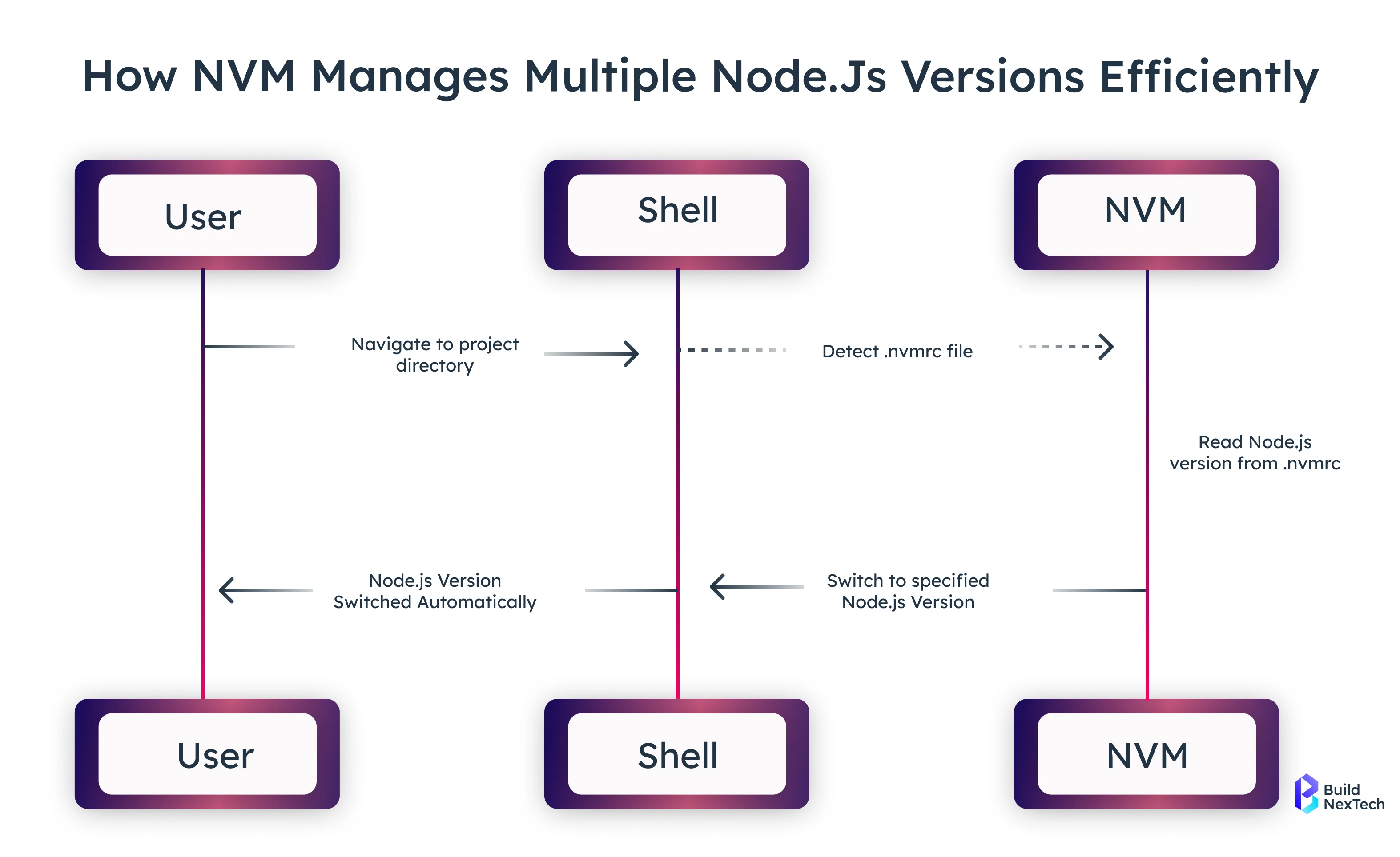
Yes. If a project includes an .nvmrc file, running nvm use can auto-switch to that specified version. You can also set auto-switching using shell hooks/plugins.


.webp)
.webp)
.webp)

.webp)
.webp)